# OpenLineage

<figure><img src="/files/75tdIVEWCWVYbMxIRmvI" alt="" width="188"><figcaption></figcaption></figure>

First a bit on what we're aiming to do and why.

Lineage is about tracking the changes to data sets and their usage over time with the goal of explaining how every state in the data lifecycle happened. Clear lineage data makes finding, explaining, and fixing problems easier. To get a clear view of the lineage of a data set you need metadata — lots of it — and a way to analyze the information to tell the story of how things happened. &#x20;

[OpenLineage](https://openlineage.io/) is an open standard for event-based lineage capture. [Marquez](https://peppy-sprite-186812.netlify.app/) is the server and webapp providing the reference API to collect and display OpenLineage events. CsvPath is an OpenLineage event source that provides copious metadata describing how your data moves through a consistent onboarding lifecycle.&#x20;

Together these open source tools **fill the gap between MFT (managed file transfer) and the typical data lake architecture**. They provide an unprecedented level of visibility into your data onboarding operation. With workflow, transformation, and processing tools like **dbt**, **Airflow**, and **Spark** also throwing off OpenLineage events, you now have a straightforward way to collect end-to-end lineage. From data partner, to data lake, to analytics and applications, and back out to the World as a data product or service.

<figure><img src="/files/PJFq8x2qQqpeRIj00YJ6" alt=""><figcaption><p>An end-to-end lineage schematic</p></figcaption></figure>

## How to start

<img src="/files/zJVNE2YmUsS6hzf9ipx8" alt="" data-size="line"> To start, create a new CsvPath project. As usual we'll use Poetry, but of course you can use Pip or any Python project tool. Call your `project lineage_example`.

```
poetry new lineage_example
```

<figure><img src="/files/Sgfh07ntH7m8kb3KIP7i" alt="" width="375"><figcaption></figcaption></figure>

That sets up your CsvPath library. For this example we only need the CLI so we're almost done. We'll create a dummy CsvPath language file to run and some dummy data in a moment.&#x20;

<img src="/files/EA0napuzAP6lNkzwIQTj" alt="" data-size="line"> Install [Docker desktop](https://www.docker.com/products/docker-desktop/), if you don't already have it. You'll need to create a Dockerhub account. It should be painless.

<img src="/files/3T9c9KzwOx5L8yqDrS7y" alt="" data-size="line"> Next install Marquez. [Read this page](https://peppy-sprite-186812.netlify.app/docs/quickstart) because it's interesting and tells you much more about Marquez than our page does.&#x20;

Clone the Marquez Github: &#x20;

```url
git clone https://github.com/MarquezProject/marquez && cd marquez
```

In the `marquez` directory do:&#x20;

```bash
./docker/up.sh
```

After the images download and the server starts you should be done setting up Marquez.

<img src="/files/rTGVpsj5q4gjanftaY9z" alt="" data-size="line"> Back to CsvPath. Create a file in your project directory called `test.csv`. Paste in our usual test data.

```csv
firstname,lastname,say
David,Kermit,hi!
Fish,Bat,blurgh...
Frog,Bat,ribbit...
Bug,Bat,sniffle sniffle...
Bird,Bat,flap flap...
Ants,Bat,skriffle...
Slug,Bat,oozeeee...
Frog,Bat,growl
```

Create another file called `lineage_example.csvpath`. Paste in this:&#x20;

```xquery
~ id: first lineage example ~
$[*][ yes()]
```

<img src="/files/3XDhEevjxstS8GSBzw01" alt="" data-size="line"> Before we can run your files we need to stage them in the CsvPath framework's `inputs` directory. We also need to tell the CsvPath library that it should send events to Marquez.  We'll add the files first because that will give CsvPath the opportunity to create directories and config files for us.

Fire up the CsvPath CLI. Do:&#x20;

```
poetry run cli
```

If you are not using Poetry have a look at `pyproject.toml` to see the plain command to use to start the CLI.

The CLI will look like this

<figure><img src="/files/wcvnCVWhIviUQvSqDGTG" alt="" width="253"><figcaption></figcaption></figure>

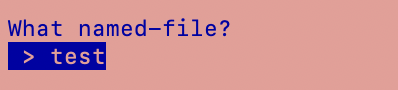
Select `named-files` and then `add named-file`. You'll be asked for a name. Give the name `test`. Then you will see options for an individual file, a JSON list of files, or adding a directory of files:

<figure><img src="/files/8kVMu2b1zt8Gy0lB0xEq" alt="" width="207"><figcaption></figcaption></figure>

Select `file`. You will see a listing of your directory. Pick `test.csv`:

<figure><img src="/files/P30Od6VFxYJuKNbeNFWc" alt="" width="272"><figcaption></figcaption></figure>

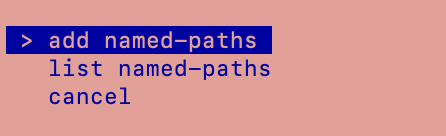
After CsvPath adds your input data file you go back to the top menu. This time select `named-paths` and then `add named-paths`. You should see:&#x20;

<figure><img src="/files/ylVWeGBgT0Gr5OfF5Hdm" alt="" width="223"><figcaption></figcaption></figure>

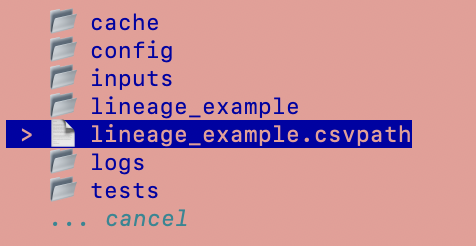
You'll be asked for a name. Give the name `lineage_example`. You will again be asked if you are picking a file of csvpaths, a directory, or a JSON file. Again pick file. You will be presented with your directory:&#x20;

<figure><img src="/files/i55h2ztUuJY6UjufsX0l" alt="" width="238"><figcaption></figcaption></figure>

&#x20;Pick your `lineage_example.csvpath` file. And you're done with that part of the setup. Next let's modify the `config.ini` slightly.&#x20;

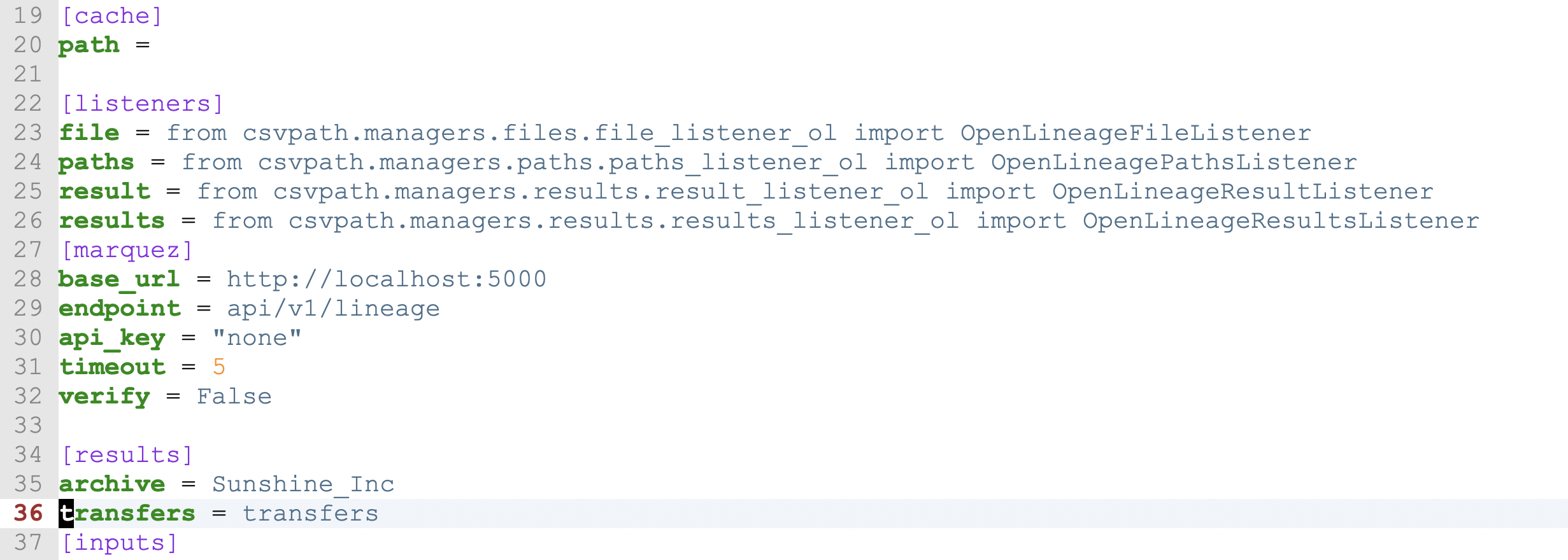
<img src="/files/No8Nh8D9dIwhF9hOZuPf" alt="" data-size="line"> Open `./config/config.ini`. We want to make two changes. First we'll change the archive name. You don't really need to do this, but since your example isn't real work, why not separate it?

We also need to uncomment the `[listeners]` and `[marquez]` settings. When you've made those changes your config file should look like:&#x20;

<figure><img src="/files/FXb6JVyvfQZ0lgPRrpES" alt=""><figcaption></figcaption></figure>

Notice we made the archive name `Sunshine_Inc`. Do the same. Marquez doesn't like spaces so be sure to use the `_`.

<img src="/files/i412XtT51r55lmU2FzKz" alt="" data-size="line"> Now we can run our csvpath! Restart your CLI so it has your config changes.

At the top level select run:
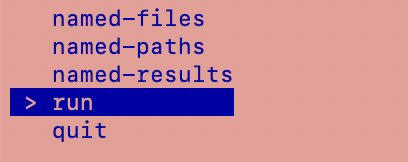
<figure><img src="/files/WwZaOwyPS3bFN1K3LUrV" alt="" width="204"><figcaption></figcaption></figure>

You will be asked to pick the file to run from a list. There is one option, so pick that.

<figure><img src="/files/KAn8O0ALQEVkOB3UsKlc" alt="" width="199"><figcaption></figcaption></figure>

&#x20;Next you will be asked for the named-paths group. Again you'll have a list of one, so pick the one.

<figure><img src="/files/RbXaLW0WxRzrUFnLr2tu" alt="" width="195"><figcaption></figcaption></figure>

And finally you'll be asked to pick a run strategy by method name. If you've been doing other examples you'll know that `collect` keeps the matching rows and `fast-forward` does not. For our purposes it doesn't matter which we choose, but pick `collect`.

<figure><img src="/files/wX09JhAdLxOmLdpX91tJ" alt="" width="206"><figcaption></figcaption></figure>

You should get a message indicating that your run completed:&#x20;

<figure><img src="/files/UJASfXVns8V625cepdeY" alt="" width="375"><figcaption></figcaption></figure>

We're good. We should see our run in Marquez.&#x20;

<img src="/files/JStA1VDcxOJNUZQxu1VA" alt="" data-size="line"> Open <http://localhost:3000/>. Remember, you'll start out looking at the `default` namespace. `default` is empty. We pushed our events to `Sunshine_Inc`.

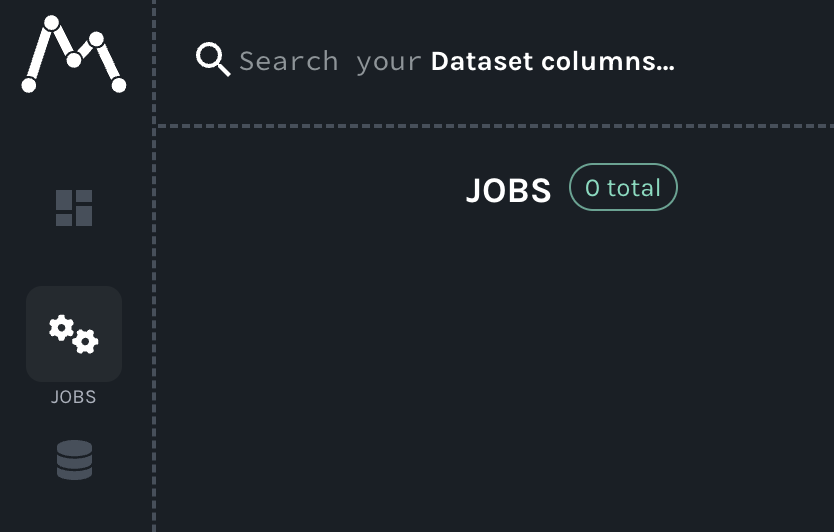
Switch to the Jobs vertical tab on the left-hand side.&#x20;

<figure><img src="/files/oCdYR7SVTuCw1Oe0LQeZ" alt="" width="375"><figcaption></figcaption></figure>

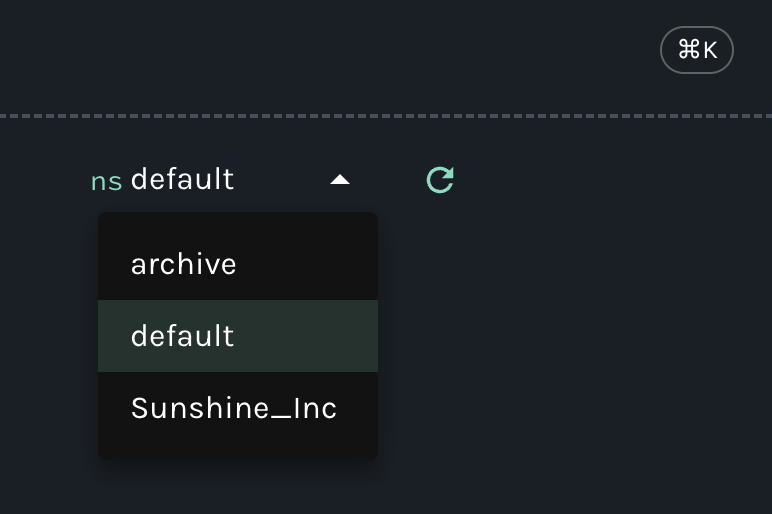
Then look at the top right for the namespaces dropdown. Select `Sunshine_Inc`. If you don't see our namespace right away, refresh the page.

<figure><img src="/files/rIogQB3sf43ZoHjCagGy" alt="" width="375"><figcaption></figcaption></figure>

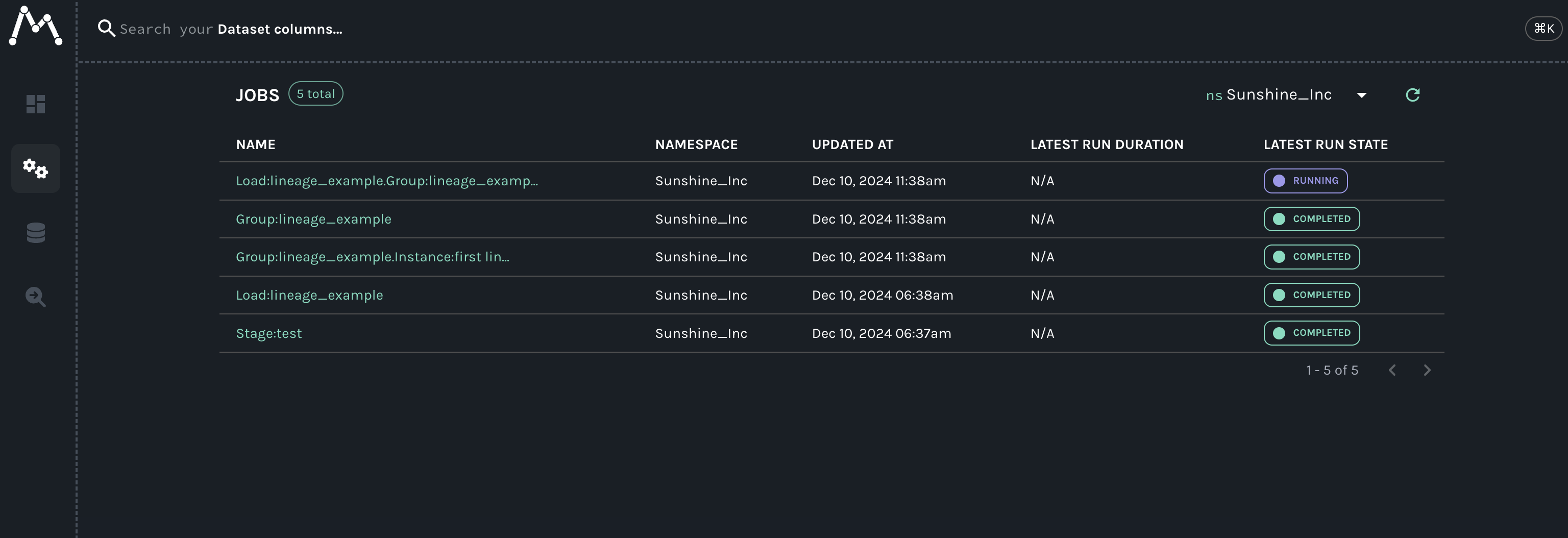
You should now see your job events!

<figure><img src="/files/pd6IYeOnlCsnKNv2gdq3" alt=""><figcaption></figcaption></figure>

Click on [Group:lineage\_example.Instance:first lin...](http://localhost:3000/lineage/job/Sunshine_Inc/Group%3Alineage_example.Instance%3Afirst%20lineage%20example) to open your core job. There will be other jobs that were for staging assets. You can learn about everything you are seeing on other pages of this site.&#x20;

<figure><img src="/files/cjzNYJHyZMZqK5KyesGC" alt=""><figcaption></figcaption></figure>

And there you have it. A local install of Marquez integrated with a CsvPath project. Clarity and consistency! Not bad for a few minutes work. And a good start on the journey to stronger edge governance and operational efficiency.&#x20;


---

# Agent Instructions: Querying This Documentation

If you need additional information that is not directly available in this page, you can query the documentation dynamically by asking a question.

Perform an HTTP GET request on the current page URL with the `ask` query parameter:

```
GET https://www.csvpath.org/getting-started/dataops-integrations/openlineage.md?ask=<question>
```

The question should be specific, self-contained, and written in natural language.
The response will contain a direct answer to the question and relevant excerpts and sources from the documentation.

Use this mechanism when the answer is not explicitly present in the current page, you need clarification or additional context, or you want to retrieve related documentation sections.